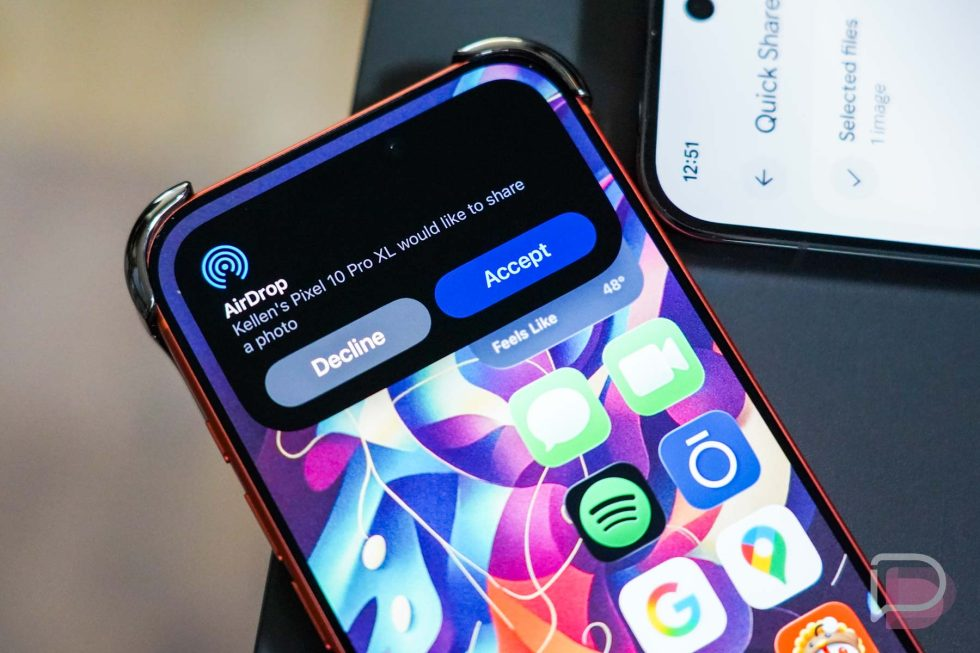
The Digital Divide: Sharing Files Between Android and iOS
In today’s tech landscape, it’s common for Filipinos to own multiple gadgets. You might track your workouts on a Garmin watch, use a MacBook for work, but rely on an Android phone for daily life. This mix-and-match approach is great for getting the best of all worlds, but it hits a snag with one simple task: sharing files. For years, Apple users have enjoyed the seamless experience of AirDrop, while Android users were left looking for a worthy equivalent. The frustration of sending photos, videos, or documents from an Android device to an iPhone is a shared experience for many. Thankfully, the digital divide is closing.
Google’s Quick Share is the powerful, built-in solution that acts as the ‘AirDrop for Android,’ and it’s more versatile than you might think. Let’s break down how you can use it to bridge the gap between your devices.
What is Quick Share?
Quick Share is Google’s universal standard for sharing files and links between nearby devices. If the name sounds new, you might know it by its former name, Nearby Share. In a recent update, Google merged its technology with Samsung’s own Quick Share to create a single, unified experience across all Android devices.
This feature allows you to instantly push photos, videos, documents, and even links to other Android phones, tablets, Chromebooks, and select Windows PCs without needing an internet connection. It uses a combination of Bluetooth and Wi-Fi to create a fast and secure peer-to-peer connection.
How to Use Quick Share (Android to Android)
Before you can share files with an iPhone, it’s helpful to understand how Quick Share works in its native Android environment. The process is simple and integrated directly into the operating system.
1. How to Send Files with Quick Share
Open the content you want to share (e.g., a photo in your gallery, a document, or a link in your browser).
Tap the Share icon.
In the share menu, select Quick Share.
Your phone will start searching for nearby devices. A list of available devices will appear.
Tap the name of the device you want to send the file to.
Wait for the recipient to accept the transfer. Once they do, the file will be sent quickly.
2. How to Receive Files with Quick Share
To receive files, you need to make sure your device is discoverable. You can control this from your phone’s Quick Settings panel.
Swipe down from the top of your screen to open the Quick Settings panel.
Find the Quick Share tile and tap it. If you can’t find it, you may need to edit your tiles to add it.
Choose who can share with you:
Your devices: Only devices logged into your Google Account can see your phone. This is perfect for seamlessly sending files between your own gadgets. For more on managing your digital life, check out our guide on setting up Google Wallet in the Philippines.
Contacts: Only your contacts who also have you in their contacts can see your device.
Everyone: Anyone nearby can see your device and send you a file. For privacy, this mode automatically reverts to “Contacts” after a few minutes.
When someone sends you a file, a pop-up will appear on your screen. Tap Accept to receive it. The file will be saved to your “Downloads” folder.
The Bridge: Sharing from Android to iPhone
Here’s the feature everyone has been waiting for. While still rolling out and primarily available on newer devices like the Google Pixel series, the ability to share from Android to iPhone using Quick Share is now a reality. This feature cleverly utilizes a QR code to initiate the connection.
Steps for the Android User (Sender):
Open the file you want to share and tap the Share icon, then select Quick Share.
When the Quick Share menu appears, instead of selecting a device, look for and tap the QR code option .
A unique QR code will be generated on your screen.
Steps for the iPhone User (Receiver):
Open the Camera app on your iPhone.
Point the camera at the QR code displayed on the Android device.
A notification will pop up on the iPhone screen with a link to a web page. Tap this notification.
The iPhone’s browser will open a page where the user can preview and download the shared file.
While not as direct as AirDrop-to-AirDrop, this QR code method is a massive step forward, eliminating the need for third-party apps or cumbersome cloud uploads for simple, quick transfers.
Troubleshooting Quick Share Issues
If you’re having trouble sending or receiving files, try these simple fixes:
Bring Devices Closer: Make sure both devices are close to each other, ideally within a few feet.
Check Your Connections: Ensure both Bluetooth and Wi-Fi are enabled on both devices.
Device Visibility: The receiving device must have its visibility set to “Everyone” or “Contacts” (if the sender is a contact).
Unlock Screens: Both device screens must be unlocked and active.
Toggle Airplane Mode: Turn Airplane mode on for a few seconds, then turn it off to reset the wireless radios.
Conclusion: A More Connected Future
The days of struggling to share files between Android and Apple devices are numbered. Google’s Quick Share provides a robust, integrated, and increasingly universal solution that simplifies cross-platform sharing. Whether you’re sending workout videos to a friend with an iPhone or moving files between your own gadgets, Quick Share is an essential tool for every modern tech user in the Philippines. Give it a try and enjoy a truly seamless sharing experience.
I'm Jeff, an active blogger and content creator who translates real-world experience into valuable articles on fitness, performance, and technology. As an Online Fitness Coach, I share proven strategies and practical guides to help you reach your goals. As a dedicated Athlete, I provide firsthand insights into effective training, recovery, and the competitive mindset. Finally, as a Tech and Gadget Enthusiast, I explore and review the latest devices to help you optimize your workouts and progress tracking.